

The Coolest Terminal Tools on My Mac Right Now
Blame Claude Code

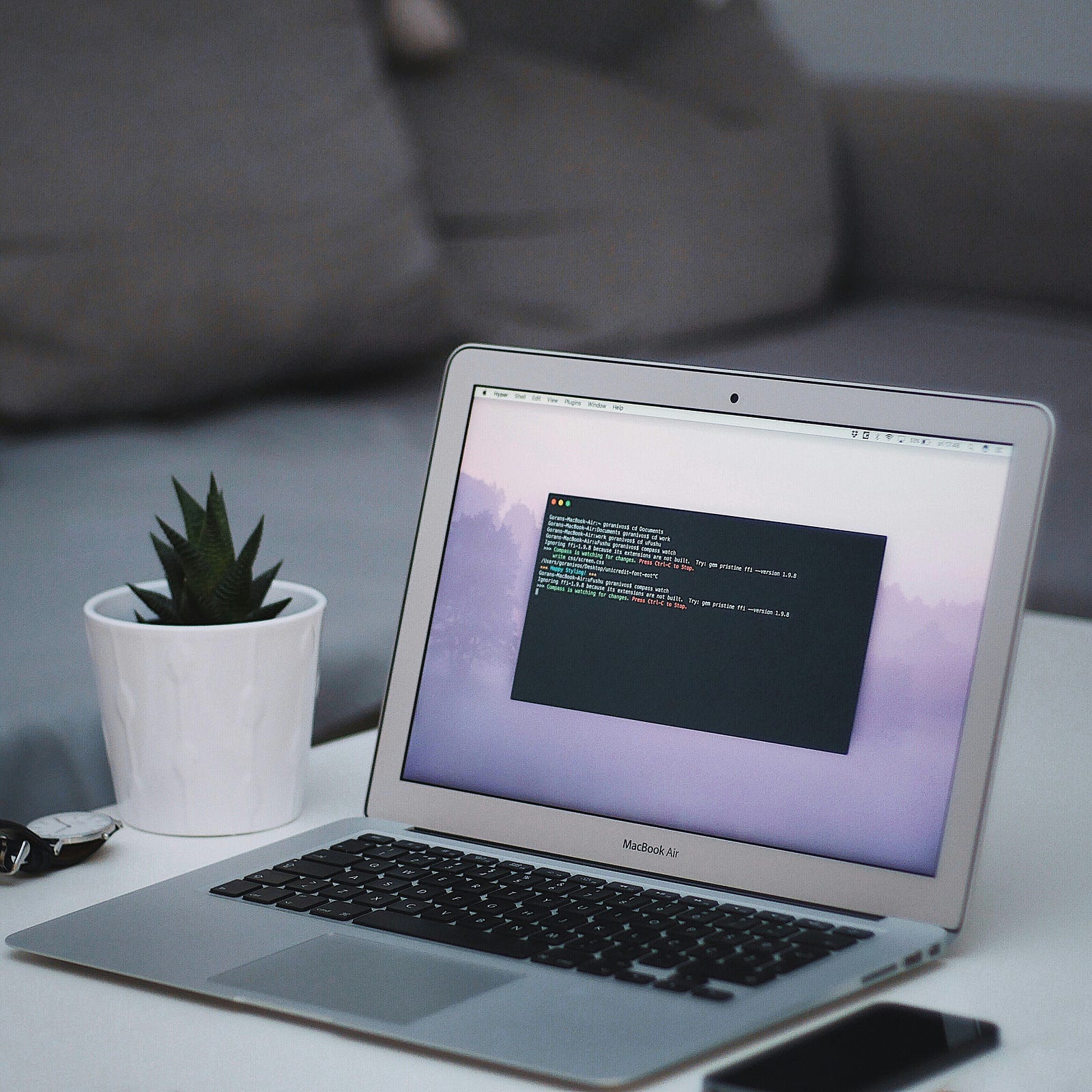
I used to avoid the terminal. Now I install more CLI tools than Mac apps.
I used the terminal a lot 15 years ago at university. Then I stopped. For over a decade, it was GUI only. Finder, drag-and-drop, App Store. The usual.
Then Claude Code happened.
And once you’re in the terminal daily, you want to do more there.
Some of the best Mac tools I’ve found this year don’t have a window. They don’t have an icon in the dock. You type a command, hit enter, and things happen.
Here are the ones I use a lot right now.
Homebrew
If you only install one thing from this list, make it Homebrew. It’s a package manager for macOS. App Store for the terminal basically, except it’s faster, has great software, and doesn’t require you to sign in with your Apple ID.
brew install something and you’re done.
I wrote a whole piece about how Homebrew replaced the Mac App Store for me. That hasn’t changed. If anything, it got worse. Or better, depending on how you look at it. I install almost everything through Homebrew now. GUI apps too, with brew install --cask.
Rectangle, Maccy, Espanso, even Obsidian and Notion. All installed via Homebrew.
Claude Code
An obvious one.
This is the one that brought me back to the terminal. I’ve written about Claude Code before. It’s an AI coding assistant that lives in the terminal (for me). No browser. No chat window. Just you, a prompt, and a cursor.
BUT…
It doesn’t just write code. It executes it. It creates files, runs scripts, installs packages, debugs errors. I’ve built entire Flutter apps with it. I’ve automated file management, batch-processed images, fixed broken links across hundreds of HTML files.
It now automates much of my writing workflow.
Mole
This one is pretty new (to me).
Mole is a terminal tool that deep cleans and optimizes your Mac. Think CleanMyMac, but free, open source, and you run it with one command.
mole
That’s it. It scans for junk files, caches, logs, broken symlinks, and all the stuff macOS accumulates over time. Shows you what it found. Lets you decide what to remove.
No subscription. No upsell. No “upgrade to Pro for full cleaning.” Just a clean Mac.
I found it recently, and I’m already a huge fan.
ripgrep
If you’ve ever used grep to search for text in files, ripgrep (rg) is that, but fast. It respects .gitignore files, skips hidden directories by default, and the output is readable.
rg "something" .
I use it constantly. When I’m looking for a phrase across hundreds of published articles, ripgrep finds it. Quickly.
Claude Code uses it under the hood too, by the way.
fd
Same idea as ripgrep, but for finding files instead of text.
The default find command on Mac is okay but the syntax sucks. fd is simpler and faster.
fd "*.html" Published/
That finds all HTML files in my Published folder. With the built-in find, you’d need: find Published/ -name "*.html". Not terrible, but fd is just cleaner. And again, faster.
zoxide
You can’t go back once you used it.
Zoxide replaces the cd command. It learns which directories you visit most and lets you jump to them with partial names.
Instead of cd ~/Library/Mobile\ Documents/com~apple~CloudDocs/Blogging, I just type:
z blogging
Done. It knows where I want to go because I’ve been there before. The more you use it, the smarter it gets.
Small thing. Saves a LOT of time.
jq
If you work with JSON files, jq is cool. It lets you query, filter, and transform JSON right in the terminal.
I use it to check my blog’s article database, filter export data, and pull specific fields out of API responses. Without jq, you’d open the file in a text editor and scroll. With jq, one command gives you exactly what you need.
cat articles.json | jq '.[] | .title'
All titles. One line.
ffmpeg
Media conversion. Video, audio, images. ffmpeg can convert almost anything to almost anything else.
Want to turn a video into a GIF, useffmpeg. Extract audio from a YouTube download, yesffmpeg. Compress a 200MB screen recording to 15MB, ffmpeg works.
The syntax is not pretty. But that’s what Claude Code is for. I describe what I want, Claude Code writes the ffmpegcommand, and it runs.
Ollama
AI running locally on your Mac. No internet required. No API costs. No data leaving your machine.
ollama run llama3
And you’re chatting with a large language model running entirely on your hardware. Apple Silicon is good at this. The M-series chips handle local AI models well.
I use it for quick questions where I don’t need Claude’s full power. Or when I want to test something without sending data to the cloud. Privacy by structure, as I once called it when writing about Linux.
pandoc
Universal document converter. Markdown to HTML. HTML to PDF. Word to Markdown. Almost any text format to any other text format.
pandoc article.md -o article.html
For someone who writes on multiple platforms in multiple formats, this is helpful. I don’t “manually” convert anything anymore.
gh
GitHub’s official CLI. I use it to create repos, open pull requests, check CI status, and manage issues.
gh repo create my-new-project --public
Not much more to say here.
The pattern
Most of these tools do one thing. And they do it well. No settings panel. No onboarding flow. No account creation. No subscription.
Type a command. Get a result.
That’s it.
Terminal tools are not for developers only. They’re great everyday tools. They’re faster. And once you know the command, you’ll likely never go back to the GUI equivalent.
Well, for most things. I’m not editing photos in the terminal. Yet…
The Bottom Line
The Mac terminal is full of incredible software that many people never discover. Homebrew is the app store. Once you walk through it, tools like Mole, ripgrep, zoxide, and Claude Code are right there.
I am loving the Terminal comeback.